---
title: Connecting Spinify To Claude AI
description: Discover how to connect your Spinify account to Claude AI via the MCP server. Use Claude AI to quickly break down stats and seek advice to improve performance.
---
[Skip to content](https://knowledge.spinify.com/help/connecting-player-spinify-to-claude-ai#main-content)
English
Show submenu for translations
[Create Ticket](https://knowledge.spinify.com/help/kb-tickets/new?hsLang=en) [Customer Portal](https://knowledge.spinify.com/tickets?hsLang=en)
- [Home](https://knowledge.spinify.com/)
- [Customer Portal](https://knowledge.spinify.com/tickets?offset=0)
- [Academy](https://academy.spinify.com/trainings)
- [YouTube](https://www.youtube.com/channel/UCr89cR8jfrU7LbTBFSu2iPQ)
- [Success Stories](https://spinify.com/customer-stories/)
- [Blog](https://spinify.com/blog/)
Open main navigation
Close main navigation
- [Home](https://knowledge.spinify.com/)
- [Customer Portal](https://knowledge.spinify.com/tickets?offset=0)
- [Academy](https://academy.spinify.com/trainings)
- [YouTube](https://www.youtube.com/channel/UCr89cR8jfrU7LbTBFSu2iPQ)
- [Success Stories](https://spinify.com/customer-stories/)
- [Blog](https://spinify.com/blog/)
- English
Show submenu for translations
- [Create Ticket](https://knowledge.spinify.com/help/kb-tickets/new)
- [Customer Portal](https://knowledge.spinify.com/tickets)
- [Spinify Academy](https://academy.spinify.com/trainings)
[Spinify Academy](https://academy.spinify.com/trainings)
How can we help you?
- There are no suggestions because the search field is empty.
1. [Spinify Knowledge](https://knowledge.spinify.com/help?hsLang=en)
2. [Players Zone](https://knowledge.spinify.com/help/players-zone?hsLang=en)
# Connecting Spinify To Claude AI
Model Context Protocol (MCP) allows Claude to interact directly with your Spinify data, providing real-time insights into your team's performance, leaderboards, and gamification metrics. Follow this guide to set up the connection.
### Prerequisites
- An active **Claude AI** account
- Your **Spinify** login credentials.
### Setup Instructions
#### 1. Access Connector Settings
Log in to your [Claude.ai](https://claude.ai) account. Click on your **User Profile/Name** in the bottom-left corner to open the menu, then select **Settings**. From the sidebar, navigate to the **Connectors** tab.
#### 2. Add the Spinify Connector
Click the **Add Custom Connector** button. You will be prompted to provide the following details:
- **Name:** Spinify (or a name of your choice).
- **Remote MCP Server URL:** `https://mcp.spinify.com/mcp`
Click **Add** to save the configuration.
#### 3. Authenticate with Spinify
Once added, locate the Spinify connector in your list and click **Connect**. A pop-up window will appear asking you to log in to your **Spinify Account**. Enter your credentials to authorize the link between the two platforms.
#### 4. Configure Permissions
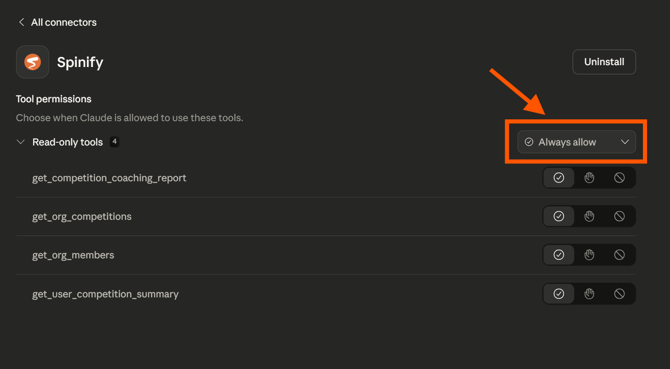
To ensure a seamless experience without constant prompts, go to the **Configure** settings for the Spinify connector. Set the **Tool Permissions** to **"Always allow"**. This grants Claude permission to fetch your leaderboard data whenever you ask.
#### Using Spinify in Claude
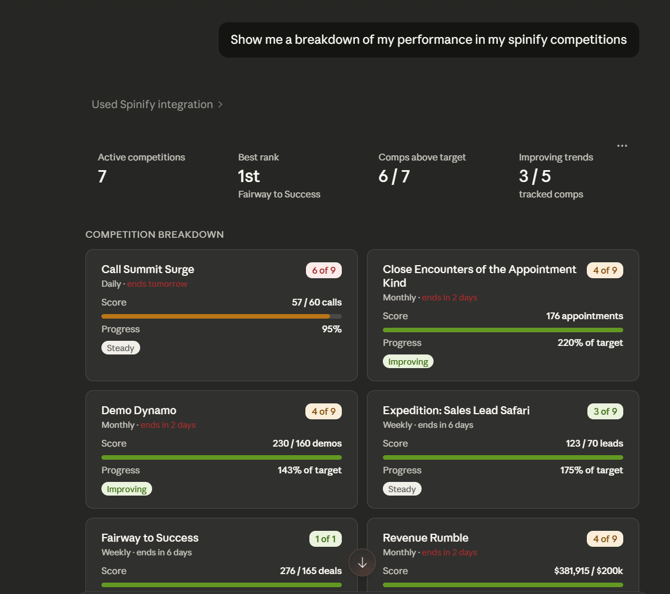
Start a **New Chat** and ask Claude about your performance data. You can now use natural language to gain insights, such as:
- *"Give me an overview of my performance in Spinify"*
- *"Summarize my progress toward the monthly targets."*
- *"How can i improve my performance?"*
- *"Ring the Gong for \[name\]"*
Claude will then get to work connecting with Spinify to gather insights, graphs, and advice to help you make the most of your Spinify experience, and get the best out of your performance!
- [Discover Spinify](https://knowledge.spinify.com/help/discover-spinify?hsLang=en)
- [Quick Set Up](https://knowledge.spinify.com/help/quick-set-up?hsLang=en#main-content)
- [Competitions & Leaderboards](https://knowledge.spinify.com/help/quick-set-up?hsLang=en#competitions-leaderboards)
- [Users](https://knowledge.spinify.com/help/quick-set-up?hsLang=en#users)
- [Achievements](https://knowledge.spinify.com/help/quick-set-up?hsLang=en#achievements)
- [TV & Displays](https://knowledge.spinify.com/help/quick-set-up?hsLang=en#tv-displays)
- [Onboarding](https://knowledge.spinify.com/help/quick-set-up?hsLang=en#onboarding)
- [Single Sign On](https://knowledge.spinify.com/help/quick-set-up?hsLang=en#single-sign-on)
- [Integrations](https://knowledge.spinify.com/help/integrations?hsLang=en#main-content)
- [Agentbox](https://knowledge.spinify.com/help/integrations?hsLang=en#agentbox)
- [MRI Box and Dice](https://knowledge.spinify.com/help/integrations?hsLang=en#mri-box-and-dice)
- [Bullhorn](https://knowledge.spinify.com/help/integrations?hsLang=en#bullhorn)
- [Zendesk](https://knowledge.spinify.com/help/integrations?hsLang=en#zendesk)
- [PowerBI](https://knowledge.spinify.com/help/integrations?hsLang=en#powerbi)
- [CSV Upload](https://knowledge.spinify.com/help/integrations?hsLang=en#csv-upload)
- [HubSpot](https://knowledge.spinify.com/help/integrations?hsLang=en#hubspot)
- [Google Sheets](https://knowledge.spinify.com/help/integrations?hsLang=en#google-sheets)
- [Google Slides or Google Calendar](https://knowledge.spinify.com/help/integrations?hsLang=en#google-slides-or-google-calendar)
- [Spinify API](https://knowledge.spinify.com/help/integrations?hsLang=en#spinify-api)
- [Salesforce Reports](https://knowledge.spinify.com/help/integrations?hsLang=en#salesforce-reports)
- [Microsoft Excel](https://knowledge.spinify.com/help/integrations?hsLang=en#microsoft-excel)
- [Pipedrive](https://knowledge.spinify.com/help/integrations?hsLang=en#pipedrive)
- [Salesforce Trailhead](https://knowledge.spinify.com/help/integrations?hsLang=en#salesforce-trailhead)
- [Tableau](https://knowledge.spinify.com/help/integrations?hsLang=en#tableau)
- [LockedOn](https://knowledge.spinify.com/help/integrations?hsLang=en#lockedon)
- [Microsoft Teams](https://knowledge.spinify.com/help/integrations?hsLang=en#microsoft-teams)
- [SQL](https://knowledge.spinify.com/help/integrations?hsLang=en#sql)
- [Slack](https://knowledge.spinify.com/help/integrations?hsLang=en#slack)
- [Microsoft Dynamics](https://knowledge.spinify.com/help/integrations?hsLang=en#microsoft-dynamics)
- [Outreach](https://knowledge.spinify.com/help/integrations?hsLang=en#outreach)
- [Rex Software](https://knowledge.spinify.com/help/integrations?hsLang=en#rex-software)
- [JobAdder](https://knowledge.spinify.com/help/integrations?hsLang=en#jobadder)
- [Salesforce](https://knowledge.spinify.com/help/integrations?hsLang=en#salesforce)
- [Follow Up Boss](https://knowledge.spinify.com/help/integrations?hsLang=en#follow-up-boss)
- [Zapier](https://knowledge.spinify.com/help/integrations?hsLang=en#zapier)
- [CloudCall](https://knowledge.spinify.com/help/integrations?hsLang=en#cloudcall)
- [Freshdesk](https://knowledge.spinify.com/help/integrations?hsLang=en#freshdesk)
- [MRI Vault CRM](https://knowledge.spinify.com/help/integrations?hsLang=en#mri-vault-crm)
- [Webhooks](https://knowledge.spinify.com/help/integrations?hsLang=en#webhooks)
- [FTP](https://knowledge.spinify.com/help/integrations?hsLang=en#ftp)
- [GetAccept](https://knowledge.spinify.com/help/integrations?hsLang=en#getaccept)
- [Close CRM](https://knowledge.spinify.com/help/integrations?hsLang=en#close-crm)
- [HighLevel](https://knowledge.spinify.com/help/integrations?hsLang=en#highlevel)
- [Aircall](https://knowledge.spinify.com/help/integrations?hsLang=en#aircall)
- [Kixie](https://knowledge.spinify.com/help/integrations?hsLang=en#kixie)
- [LeadDesk](https://knowledge.spinify.com/help/integrations?hsLang=en#leaddesk)
- [Zoho](https://knowledge.spinify.com/help/integrations?hsLang=en#zoho)
- [Incentives](https://knowledge.spinify.com/help/incentives?hsLang=en#main-content)
- [Reward Store](https://knowledge.spinify.com/help/incentives?hsLang=en#reward-store)
- [Points, Badges & Tiers](https://knowledge.spinify.com/help/incentives?hsLang=en#points-badges-tiers)
- [Prize Wheels](https://knowledge.spinify.com/help/incentives?hsLang=en#prize-wheels)
- [FAQs](https://knowledge.spinify.com/help/faqs?hsLang=en#main-content)
- [Competitions](https://knowledge.spinify.com/help/faqs?hsLang=en#competitions)
- [Account](https://knowledge.spinify.com/help/faqs?hsLang=en#account)
- [TV & Channels](https://knowledge.spinify.com/help/faqs?hsLang=en#tv-channels)
- [Spinify](https://knowledge.spinify.com/help/faqs?hsLang=en#spinify)
- [Troubleshooting](https://knowledge.spinify.com/help/faqs?hsLang=en#troubleshooting)
- [Sidekick](https://knowledge.spinify.com/help/faqs?hsLang=en#sidekick)
- [Achievement](https://knowledge.spinify.com/help/faqs?hsLang=en#achievement)
- [Manager Toolkit](https://knowledge.spinify.com/help/manager-toolkit?hsLang=en#main-content)
- [AI Coaching Agent](https://knowledge.spinify.com/help/manager-toolkit?hsLang=en#ai-coaching-agent)
- [Analytics](https://knowledge.spinify.com/help/manager-toolkit?hsLang=en#analytics)
- [Messages & Announcements](https://knowledge.spinify.com/help/manager-toolkit?hsLang=en#messages-announcements)
- [Coaching Tools](https://knowledge.spinify.com/help/manager-toolkit?hsLang=en#coaching-tools)
- [Administration & Accounts](https://knowledge.spinify.com/help/administration-accounts?hsLang=en#main-content)
- [Billing](https://knowledge.spinify.com/help/administration-accounts?hsLang=en#billing)
- [Privacy & Terms](https://knowledge.spinify.com/help/administration-accounts?hsLang=en#privacy-terms)
- [Players Zone](https://knowledge.spinify.com/help/players-zone?hsLang=en)
- [Apps & Extensions](https://knowledge.spinify.com/help/apps-extensions?hsLang=en#main-content)
- [Chrome Extension](https://knowledge.spinify.com/help/apps-extensions?hsLang=en#chrome-extension)
- [Mobile App](https://knowledge.spinify.com/help/apps-extensions?hsLang=en#mobile-app)
- [Spinify MCP](https://knowledge.spinify.com/help/apps-extensions?hsLang=en#spinify-mcp)
[.png?width=150&height=150&name=download%20(2).png "download (2)")](https://Spinify.com)
#1 Ranked Sales Gamification Software
[mailto:email@email.com](mailto:email@email.com)
Copyright © 2024, Spinify