After creating your Spinify Account, you will want your data to come across from MRI Box and Dice automatically. You can get your Spinify account integrated with MRI Box and Dice in just a couple of steps.
1. Go to the integrations page
- Log into your MySpinify account
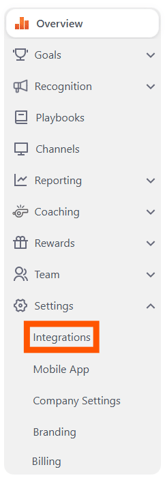
- From the left-hand menu, click "Settings" then "Integrations"
2. Connect MRI Box and Dice with Spinify
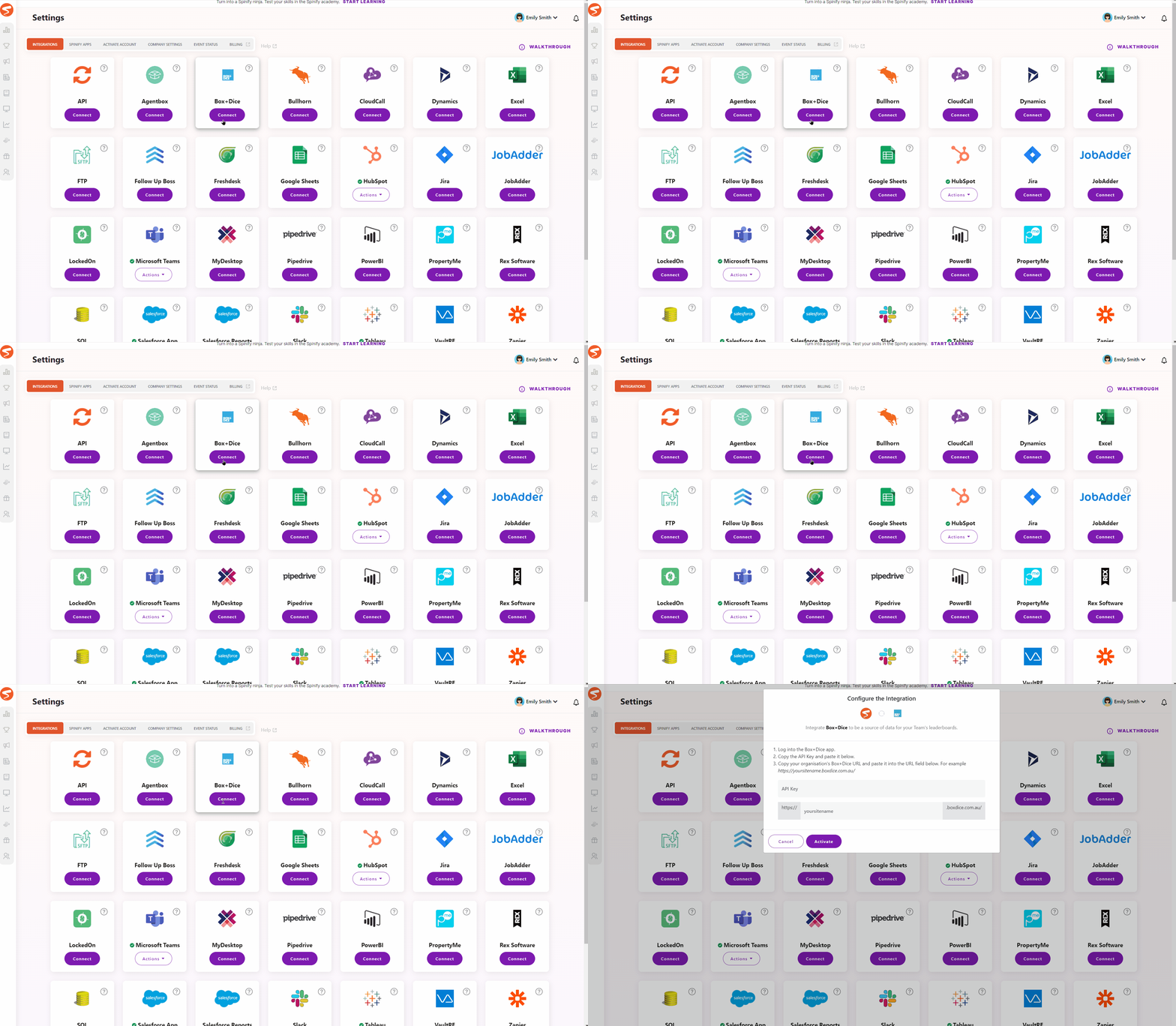
- Choose "Connect" on the MRI Box and Dice Integration tile
3. Follow the Instructions to Get Your API Key
- Log into MRI Box and Dice
- Copy your organization's API Key
4. Connect MRI Box and Dice with Spinify
- Paste the API key into the pop-up window that you got from Section 2.
- Complete the URL for your MRI Box and Dice account by filling in your organization name.
- Click the "Activate" button
Your Spinify is now configured to sync details from MRI Box and Dice
- You can now create a Competition with MRI Box and Dice details.